
Launching Dual RS ROS2 nodes
The following example lanches two RS ROS2 nodes.
ros2 launch realsense2_camera rs_dual_camera_launch.py serial_no1:=<serial number of the first camera> serial_no2:=<serial number of the second camera>
Example:
Let's say the serial numbers of two RS cameras are 207322251310 and 234422060144.
ros2 launch realsense2_camera rs_dual_camera_launch.py serial_no1:="'207322251310'" serial_no2:="'234422060144'"
or
ros2 launch realsense2_camera rs_dual_camera_launch.py serial_no1:=_207322251310 serial_no2:=_234422060144
How to know the serial number?
Method 1: Using the rs-enumerate-devices tool
rs-enumerate-devices | grep "Serial Number"
Method 2: Connect single camera and run
ros2 launch realsense2_camera rs_launch.py
and look for the serial number in the log printed to screen under "[INFO][...] Device Serial No:".
Using Multiple RS camera by launching each in differnet terminals
Make sure you set a different name and namespace for each camera.
Terminal 1:
ros2 launch realsense2_camera rs_launch.py serial_no:="'207322251310'" camera_name:='camera1' camera_namespace:='camera1'
Terminal 2:
ros2 launch realsense2_camera rs_launch.py serial_no:="'234422060144'" camera_name:='camera2' camera_namespace:='camera2'
Multiple cameras showing a semi-unified pointcloud
The D430 series of RealSense cameras use stereo based algorithm to calculate depth. This mean, a couple of cameras can operate on the same scene. For the purpose of this demonstration, let's say 2 cameras can be coupled to look at the same scene from 2 different points of view. See image:
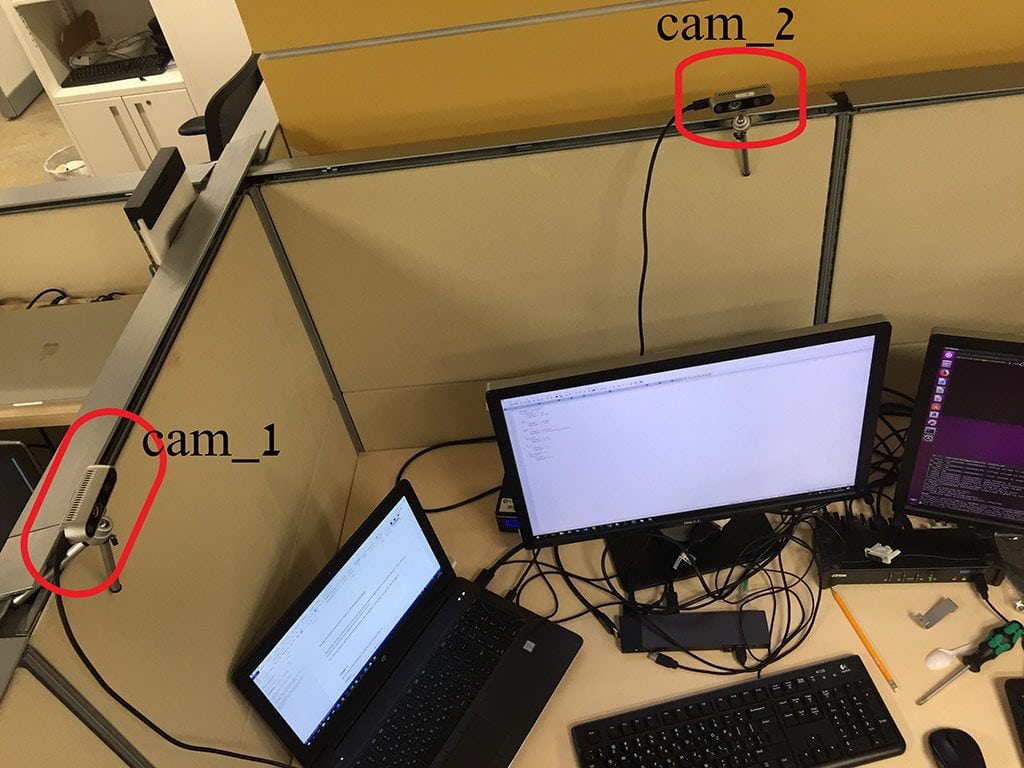
The schematic settings could be described as:
X--------------------------------->cam_2
| (70 cm)
|
|
| (60 cm)
|
|
/
cam_1
The cameras have no data regarding their relative position. Thats up to a third party program to set. To simplify things, the coordinate system of cam_1 can be considered as the refernce coordinate system for the whole scene.
The estimated translation of cam_2 from cam_1 is 70(cm) on X-axis and 60(cm) on Y-axis. Also, the estimated yaw angle of cam_2 relative to cam_1 as 90(degrees) clockwise. These are the initial parameters to be set for setting the transformation between the 2 cameras as follows:
ros2 launch realsense2_camera rs_dual_camera_launch.py serial_no1:=_207322251310 serial_no2:=_234422060144 tf.translation.x:=0.7 tf.translation.y:=0.6 tf.translation.z:=0.0 tf.rotation.yaw:=-90.0 tf.rotation.pitch:=0.0 tf.rotation.roll:=0.0
If the unified pointcloud result is not good, follow the below steps to fine-tune the calibaration.
Visualizing the pointclouds and fine-tune the camera calibration
Launch 2 cameras in separate terminals:
Terminal 1:
ros2 launch realsense2_camera rs_launch.py serial_no:="'207322251310'" camera_name:='camera1' camera_namespace:='camera1'
Terminal 2:
ros2 launch realsense2_camera rs_launch.py serial_no:="'234422060144'" camera_name:='camera2' camera_namespace:='camera2'
Terminal 3:
rviz2
Open rviz and set 'Fixed Frame' to camera1_link
Add Pointcloud2-> By topic -> /camera1/camera1/depth/color/points
Add Pointcloud2 -> By topic -> /camera2/camera2/depth/color/points
Terminal 4:
Run the 'set_cams_transforms.py' tool. It can be used to fine-tune the calibaration.
python src/realsense-ros/realsense2_camera/scripts/set_cams_transforms.py camera1_link camera2_link 0.7 0.6 0 -90 0 0
Instructions printed by the tool:
Using default file /home/user_name/ros2_ws/src/realsense-ros/realsense2_camera/scripts/_set_cams_info_file.txt

Use given initial values.

Press the following keys to change mode: x, y, z, (a)zimuth, (p)itch, (r)oll

For each mode, press 6 to increase by step and 4 to decrease

Press + to multiply step by 2 or - to divide

Press Q to quit
Note that the tool prints the path of the current configuration file. It saves its last configuration automatically, all the time, to be used on the next run.
After a lot of fiddling around, unified pointcloud looked better with the following calibaration:
x = 0.75
y = 0.575
z = 0
azimuth = -91.25
pitch = 0.75
roll = 0
Now, use the above results in the launch file:
ros2 launch realsense2_camera rs_dual_camera_launch.py serial_no1:=_207322251310 serial_no2:=_234422060144 tf.translation.x:=0.75 tf.translation.y:=0.575 tf.translation.z:=0.0 tf.rotation.yaw:=-91.25 tf.rotation.pitch:=0.75 tf.rotation.roll:=0.0